Instant Replay VLC

OBS Lua Instant Replay VLC V1.5


Version 1.5 focuses on making setup easier, improving source handling, and reducing unnecessary configuration.

What's New​

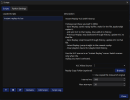
  • Automatic Replay Area Setup: When an empty VLC Video Source is detected, the script automatically creates a semi-transparent placeholder to help position and size your replays.
  • Visual Resizing: Move and resize the placeholder directly in OBS. Once you're happy with the placement, click the eye icon beside the temporary source to apply the dimensions.
  • Improved Source Detection: The script now recognizes newly created VLC sources, including replacements for previously deleted sources, without requiring a script restart.
  • Persistent Replay Layout: Once configured, the replay area retains its intended position and dimensions for subsequent replays.
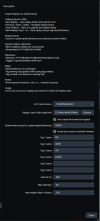
  • Simplified Settings: Reduced unnecessary text and clutter in the Scripts window, keeping the important controls accessible.
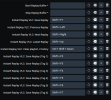
  • No Additional Hotkeys: All existing hotkeys remain unchanged. Replay area configuration uses OBS's built-in controls.

Additional Improvements​

  • Improved handling of VLC sources without loaded media.
  • Better detection of source changes and scene transitions.
  • Updated internal versioning and setup feedback.
  • Existing replay saving, navigation, and optional file copying functionality retained.

Getting Started​

I've also created a short, two-minute setup video demonstrating how to get everything configured. (located at the top of this post)

The goal remains the same: simple setup, straightforward operation, and instant replays without unnecessary complexity.

Thanks to everyone who has downloaded the script and provided feedback. We've now passed 3,300 downloads since the initial release on January 18, 2026.
This update focuses on reliability. The controls and basic workflow haven’t changed.

The script now waits for OBS to confirm a replay has been saved before processing it. File copying has also been reworked so it no longer loads the entire video into memory. If a copy fails, the script reports the problem and falls back to the original replay.

I’ve also tightened up handling for repeated Save presses, missing files, and clearing history while a replay is still processing. Previous and Next no longer reload the same clip when you reach either end of your history.

There’s a new Check Setup button and clearer status messages to help catch configuration problems before you go live.

Your existing hotkeys and settings are retained when updating the script in place. Close OBS, back up the old script, and replace it using the same filename and location. Don’t load both versions.

** Next update will include playback history import and handling **

Thanks to everyone who’s downloaded and used it: 2,486 downloads since January!

V1.3​

  • Reverted to the v1.0 codebase as the stable release foundation
  • Removed optional session folders for copied replays
  • Removed stream-name and session-based replay organization
  • Removed tag-based replay saving and related hotkeys
  • Removed v1.2 file scanning and numbering logic
  • Returned the script to the simpler and more reliable v1.0 replay workflow
  • Removed replay history cap
    • Replay history is no longer limited by an internal maximum
    • Replays remain available for the full OBS session unless manually cleared
  • Removed the Max Replays Kept in Historysetting
    • Simplified the script UI
    • Returned replay retention control to the end user
  • Preserved core replay behavior
    • Instant Replay support using OBS Replay Buffer and a VLC source
    • Replay history with navigation hotkeys
    • Single-file VLC playlist behavior for direct replay loading

Why this rollback happened​


v1.2 introduced additional replay management features, but those additions also increased complexity in the script and moved it away from the core behavior that mattered most. The v1.0 foundation proved to be the more reliable base for actual live-session use, especially for keeping replay handling simple, predictable, and easy to manage.


This rollback was done to restore stability, reduce unnecessary moving parts, and keep the script focused on its primary job: saving replays, loading them cleanly into VLC, and allowing straightforward session-based replay navigation without artificial limits.

Attachments

  • Screenshot 2026-04-02 135726.png
    Screenshot 2026-04-02 135726.png
    80 KB · Views: 147
Instant Replay VLC v1.2 Update

This update adds optional session folders and tag-based replay saving.

You can now bind hotkeys to save replays with a specific tag. Each tag maintains its own incrementing number based on existing files, so numbering remains correct across restarts.

Session folders are optional and disabled by default. When enabled, copied replays are organized into per-session folders using the stream name and session start time.

Default behavior is unchanged. If you don’t use the new features, the script works exactly like v1.1.


Update Video

Attachments

  • Screenshot 2026-01-19 153709.png
    Screenshot 2026-01-19 153709.png
    67.3 KB · Views: 208
  • Screenshot 2026-01-19 153725.png
    Screenshot 2026-01-19 153725.png
    50.6 KB · Views: 488

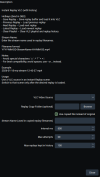
Added a user-defined stream name field for replay filename naming.​


Stream Name:
Enter the stream name used in replay filenames.

Filename format:
YYYY-MM-DD--HH-MM-SS-StreamName.mp4

Notes:
- Avoid special characters: \ / : * ? " < > |
- For best compatibility, avoid spaces; use - or _ instead.

Example:
2026-01-18-12-43-37-my-stream.mp4

Attachments

  • Screenshot 2026-01-18 125313.png
    Screenshot 2026-01-18 125313.png
    45.3 KB · Views: 176
Back
Top