

StreamTranslate adds live captions and translated subtitles to streams through an OBS Browser Source. The Browser Source workflow does not require an OBS caption plugin.
How it works:
1. Sign in at https://streamtranslate.live/control with available caption hours.
2. Choose your audio source, spoken language and target caption language. Allow access to the intended audio input and test it.
3. Generate and copy the complete Browser Source URL.
4. In OBS Studio, add a Browser Source, paste the URL and match its dimensions to your canvas. Place captions above the video sources they should cover.
5. Start the caption session in Control. Keep Control open when using browser-microphone mode, record a short test, then start your video broadcast separately in OBS.
Live captions and translation support 65 languages. Use the overlay when broadcasting from OBS to Twitch, YouTube Live, Kick or another destination. These are visible subtitle overlays; native player closed captions are a separate output.
Speech processing runs in the cloud. The Browser Source overlay still uses OBS/browser resources and requires internet access. Caption timing varies with speech, connection and settings. Test the workflow on your OBS version, operating system and audio setup before broadcasting.
Live plans:
- Free: 3 active hours per month. Card required; no charge unless you upgrade.
- Stream Pass: $12 one time for 12 active hours. Unused hours carry across caption sessions.
- Starter: $14.99/month for 25 hours. Eligible new customers can get the first month for $1, then $14.99/month.
- Pro: $34.99/month for 50 hours and up to two overlay languages.
- Elite: $149/month for unlimited hours and up to two overlay languages.
See https://streamtranslate.live/pricing for current plan details.
Recorded-video translation is available as a separate workflow and charge supporting 60 languages. The 65-language count above applies to live captions and translation.
Note: AI tools were used in the development of this resource for the translations.
Website: https://streamtranslate.live/
Pricing: https://streamtranslate.live/pricing
Setup: https://streamtranslate.live/obs-browser-source-subtitles
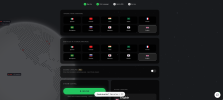
The attached screenshot shows an earlier interface. Follow the current setup guide linked above.
How it works:
1. Sign in at https://streamtranslate.live/control with available caption hours.
2. Choose your audio source, spoken language and target caption language. Allow access to the intended audio input and test it.
3. Generate and copy the complete Browser Source URL.
4. In OBS Studio, add a Browser Source, paste the URL and match its dimensions to your canvas. Place captions above the video sources they should cover.
5. Start the caption session in Control. Keep Control open when using browser-microphone mode, record a short test, then start your video broadcast separately in OBS.
Live captions and translation support 65 languages. Use the overlay when broadcasting from OBS to Twitch, YouTube Live, Kick or another destination. These are visible subtitle overlays; native player closed captions are a separate output.
Speech processing runs in the cloud. The Browser Source overlay still uses OBS/browser resources and requires internet access. Caption timing varies with speech, connection and settings. Test the workflow on your OBS version, operating system and audio setup before broadcasting.
Live plans:
- Free: 3 active hours per month. Card required; no charge unless you upgrade.
- Stream Pass: $12 one time for 12 active hours. Unused hours carry across caption sessions.
- Starter: $14.99/month for 25 hours. Eligible new customers can get the first month for $1, then $14.99/month.
- Pro: $34.99/month for 50 hours and up to two overlay languages.
- Elite: $149/month for unlimited hours and up to two overlay languages.
See https://streamtranslate.live/pricing for current plan details.
Recorded-video translation is available as a separate workflow and charge supporting 60 languages. The 65-language count above applies to live captions and translation.
Note: AI tools were used in the development of this resource for the translations.
Website: https://streamtranslate.live/
Pricing: https://streamtranslate.live/pricing
Setup: https://streamtranslate.live/obs-browser-source-subtitles
The attached screenshot shows an earlier interface. Follow the current setup guide linked above.