Resource icon

Image Reaction 1.4

Hi, updated, crash, same story here with issues.
Hello,

There are two solutions: either you really have a portable version like and so this is the next procedure, or else you did an installation with the installer, and you changed the path, so it stays in an installation and so this is procedure 2.
I try the process and this is what i have find :

Procedure 2:
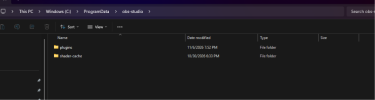
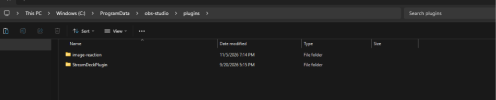
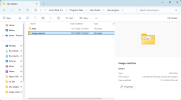
Make folder in ProgramData\obs-studio\plugins and copy image-reaction folder here
View attachment 122064
I might try the 2nd procedure, the difference is that the last time my folders were setup, it also had a 32-bit and 64-bit folder. I'll try moving them elsewhere and move just the image reaction folder there and see how it works at a later time.

UPDATE: just moving the folder there did not work after removing the old libreact file in the 64 file.
 
Hello,

There are two solutions: either you really have a portable version like and so this is the next procedure, or else you did an installation with the installer, and you changed the path, so it stays in an installation and so this is procedure 2.
I try the process and this is what i have find :

Procedure 1:
check if you have portable_mode ou portable_mode.txt in root of folder
View attachment 122060
Make a plugin floder in root like this
View attachment 122061
and copy folder "image-reaction" like thisView attachment 122062
and this is work
View attachment 122063

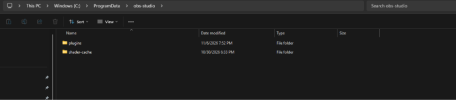
Procedure 2:
Make folder in ProgramData\obs-studio\plugins and copy image-reaction folder here
View attachment 122064
I am not on the mobile version
1794013278895.png

1794012918928.png

but it is still not showing up in OBS even with the name change
1794012956186.png
1794013252509.png
1794013006143.png
 

Attachments

  • 1794012893156.png
    1794012893156.png
    16.7 KB · Views: 15
  • 1794012987360.png
    1794012987360.png
    22.1 KB · Views: 13
  • 1794013199768.png
    1794013199768.png
    16.7 KB · Views: 14
Hey everyone, literally created an acct just to jump in here and helpout. I was able to get this working with the new OBS update! I think the mistake we all were making is we were copying the folder and installing it here

1794107522153.png


what worked for me was clicking into the data folder first and I had another obs-plugins folder there. Once I pasted the image reaction folder into the obs-plugins folder within data, the image reaction plugin worked successfully, hope this helped!
 
Adding this to contribute

these are all the locations where I've tried putting the folder in, obs still doesn't see it (the folder is currently in all of these)

E: > OBS > obs-studio >
E: > OBS > obs-studio > obs-plugins > 64bit >
E: > OBS > obs-studio > plugins >
E: > OBS > obs-studio > data >
E: > OBS > obs-studio > data > obs-plugins >
C: > programdata > obs-studio > plugins >
AppData > Roaming > obs-studio > plugin-config >
 

Attachments

  • Screenshot 2026-11-08 124114.png
    Screenshot 2026-11-08 124114.png
    5.9 KB · Views: 12
For those updating, there are to many subfiles in that zip file:
Now there are no more subfolders, and you now have to copy and paste to two different directories:
OBS soon won't allow clean subfolder loading:

They want you to do a single list of all your DLLs:
so if you need to clean or update, you have to memorize crap: do more work to find stuff:

and take up bloat file spaces:

to keep downloading ZIPs for safety checks...

obs is taking two steps back 1 forward in file management in thier updates
 
I had to sign up to talk about how it's not registering the image reaction at all, in all the file locations nothing has popped up for image reaction and nothing is popping up i tried in every conceivable spot that had plugins as a folder and nothing works, any way of this getting fixed?
 

Attachments

  • Screenshot 2026-11-11 102500.png
    Screenshot 2026-11-11 102500.png
    57.8 KB · Views: 9
  • Screenshot 2026-11-11 102528.png
    Screenshot 2026-11-11 102528.png
    265.2 KB · Views: 9
I had to sign up to talk about how it's not registering the image reaction at all, in all the file locations nothing has popped up for image reaction and nothing is popping up i tried in every conceivable spot that had plugins as a folder and nothing works, any way of this getting fixed?

How to install Image Reaction 1.4.0 for OBS Studio 33.0.1+

OBS Studio 33 overhauled the plugin directory structure, migrating to a unified layout inside
Code:
%ProgramData%
. Because the Image Reaction 1.4.0 ZIP still uses the legacy folder structure, you have to manually map its contents to the new OBS 33 layout.

  1. Clean up the previous attempt: Navigate back to
    Code:
    C:\Program Files\obs-studio\obs-plugins
    and delete the
    Code:
    image-reaction
    folder you placed there earlier so it does not conflict.
    Verification: The
    Code:
    obs-plugins
    folder is free of any
    Code:
    image-reaction
    directories.
  2. Open the OBS 33 plugins directory: Press Win + R, type
    Code:
    %ProgramData%\obs-studio\plugins
    , and press Enter. If the
    Code:
    plugins
    folder does not exist yet, create it.
  3. Create the unified plugin folder: Inside the
    Code:
    plugins
    directory, create a new folder named exactly
    Code:
    image-reaction
    .
  4. Extract the DLL file: From your extracted plugin ZIP, open the
    Code:
    obs-plugins\64bit
    folder. Copy
    Code:
    image-reaction.dll
    and paste it directly into your new
    Code:
    C:\ProgramData\obs-studio\plugins\image-reaction
    folder.
  5. Extract and rename the data folder: From your extracted plugin ZIP, open the
    Code:
    data\obs-plugins
    folder and copy the inner
    Code:
    image-reaction
    folder. Paste it next to your DLL file, and then rename this pasted folder to
    Code:
    data
    .
    Verification: Inside
    Code:
    C:\ProgramData\obs-studio\plugins\image-reaction
    , you should now see exactly one file (
    Code:
    image-reaction.dll
    ) and one folder (named
    Code:
    data
    ).
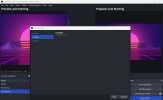
  6. Initialize in OBS Studio: Open OBS Studio and open the Plugin Manager from the Tools menu.
    Verification: Image Reaction is listed in the "Installed" tab without the yellow "Legacy" warning tag.
 
How to install Image Reaction 1.4.0 for OBS Studio 33.0.1+

OBS Studio 33 overhauled the plugin directory structure, migrating to a unified layout inside
Code:
%ProgramData%
. Because the Image Reaction 1.4.0 ZIP still uses the legacy folder structure, you have to manually map its contents to the new OBS 33 layout.

  1. Clean up the previous attempt: Navigate back to
    Code:
    C:\Program Files\obs-studio\obs-plugins
    and delete the
    Code:
    image-reaction
    folder you placed there earlier so it does not conflict.
    Verification: The
    Code:
    obs-plugins
    folder is free of any
    Code:
    image-reaction
    directories.
  2. Open the OBS 33 plugins directory: Press Win + R, type
    Code:
    %ProgramData%\obs-studio\plugins
    , and press Enter. If the
    Code:
    plugins
    folder does not exist yet, create it.
  3. Create the unified plugin folder: Inside the
    Code:
    plugins
    directory, create a new folder named exactly
    Code:
    image-reaction
    .
  4. Extract the DLL file: From your extracted plugin ZIP, open the
    Code:
    obs-plugins\64bit
    folder. Copy
    Code:
    image-reaction.dll
    and paste it directly into your new
    Code:
    C:\ProgramData\obs-studio\plugins\image-reaction
    folder.
  5. Extract and rename the data folder: From your extracted plugin ZIP, open the
    Code:
    data\obs-plugins
    folder and copy the inner
    Code:
    image-reaction
    folder. Paste it next to your DLL file, and then rename this pasted folder to
    Code:
    data
    .
    Verification: Inside
    Code:
    C:\ProgramData\obs-studio\plugins\image-reaction
    , you should now see exactly one file (
    Code:
    image-reaction.dll
    ) and one folder (named
    Code:
    data
    ).
  6. Initialize in OBS Studio: Open OBS Studio and open the Plugin Manager from the Tools menu.
    Verification: Image Reaction is listed in the "Installed" tab without the yellow "Legacy" warning tag.
Quick attempt at this, not showing up, but I did notice you used "plugin", not "obs-plugin".
I moved the image-reaction folder into a new "plugin" folder and another attempt into "obs-plugin" but it doesn't show up still.

I also noticed you use "image-reaction.dll" but the filename I got was "libimage-reaction.dll", not sure if that makes a big difference and if I had to rename it.

Aside from the naming, I'm still unable to see that under my plugin manager.
1794427968958.png
1794427999308.png

The "legacy" plugins are in the "obs-plugins" folder and does give an error if I rename that folder to "plugins", I think there's something in the coding that needs to verify that.
 
Back
Top